Open and explore STL files in your browser. Rotate models, measure dimensions and check for mesh problems before 3D printing. Your files stay on your device.
Free to use Stays on your device Binary & ASCII STL
No model loaded
FILE STAYS ON DEVICE
or drop your STL hereYour file stays on your device
DRAG TO ROTATE · RIGHT-DRAG TO PAN · SCROLL TO ZOOM
02 Get started
How to Open an STL File Online
To open an STL file online, choose a file in the viewer above or drag it into the workspace. The model opens in your browser, where you can rotate, zoom, measure its dimensions and inspect basic mesh errors. Both binary and ASCII STL files work here, and your model stays on your device.
Don't have an STL handy? Download the sample bracket STL, or select Try a sample model in the viewer to inspect it immediately. Use the toolbar for Wireframe, Grid, Fit view and two-point measurement.
Choose an STL file from your device, drag one into the workspace, or try the sample bracket. The file is read locally and is never uploaded.
02
Inspect the shape
Drag to rotate, right-drag to move the view, and scroll to zoom. Select Fit view to center the model or Wireframe to see its triangles.
03
Measure and check
Check the model’s width, depth and height. Select Measure and click two points to see the distance between them. Review the mesh checks before opening the file in your slicer.
04 Dimensions and model details
STL Dimensions and Model Details
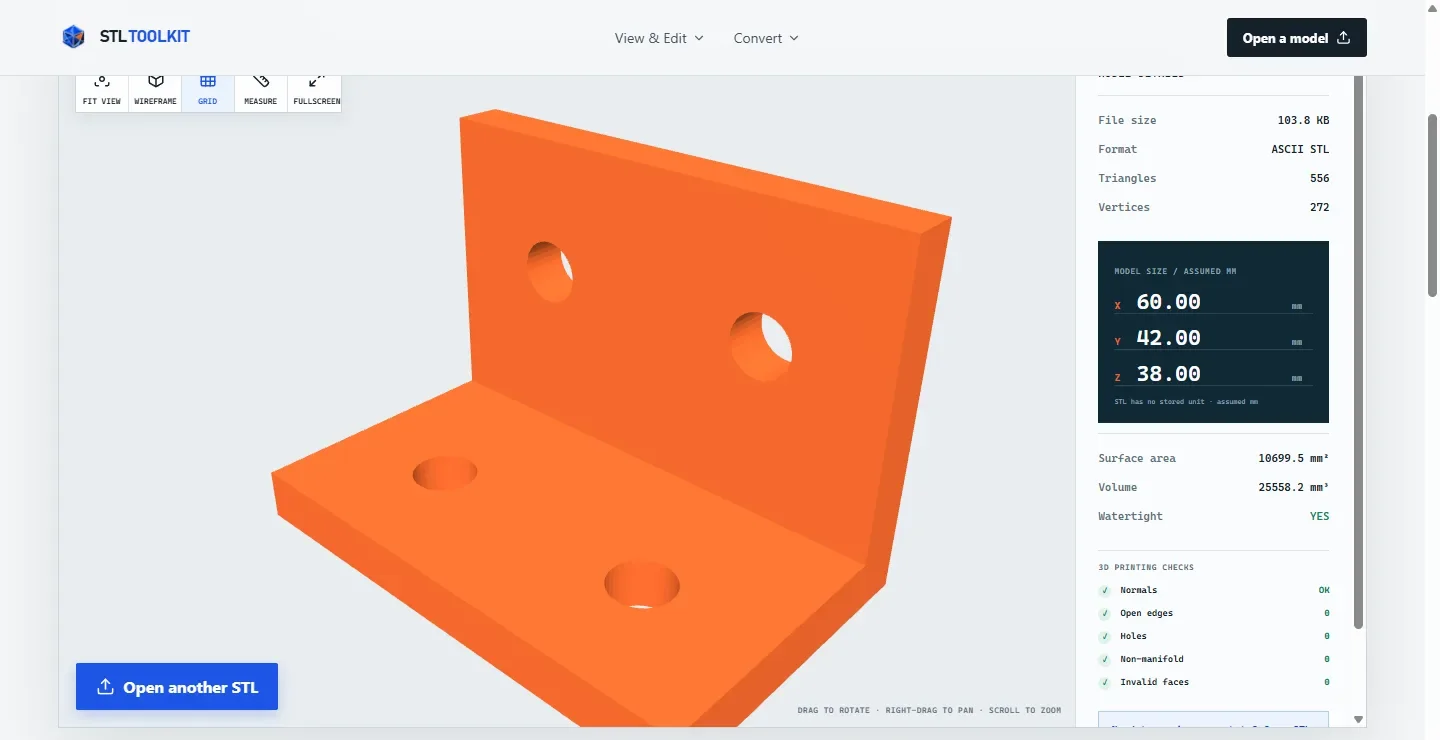
See your model's width, depth, height, triangle count and surface area in one place. For a closed, valid mesh, the viewer also shows volume. Dimensions are displayed in millimeters because STL files do not include units. Need to change the size or orientation? Resize STL Files Online.
X / Y / ZTRIANGLESVOLUME
05 Point-to-point
Measure STL Files Online
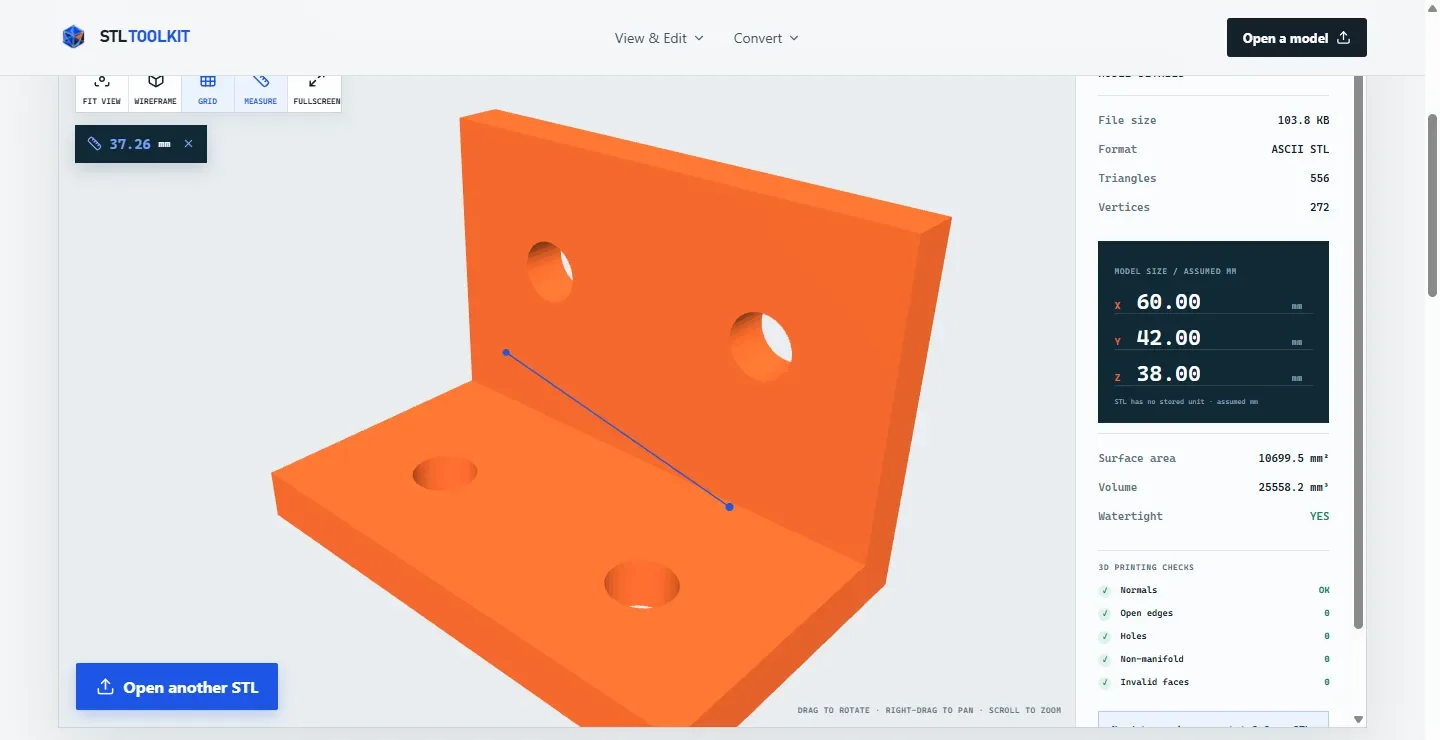
Choose Measure in the toolbar, then click two points on your model to see the straight-line distance between them. You can still rotate the model to inspect other details. Measurements are shown in millimeters. If the original file used inches, check its scale and convert the units in STL Editor before relying on a measurement.
CLICK ADISTANCE / MMCLICK B
06 In the viewer
Real STL Viewer Examples
See how the viewer displays dimensions, measurements and mesh problems. You can open the example STL files yourself to try these features.
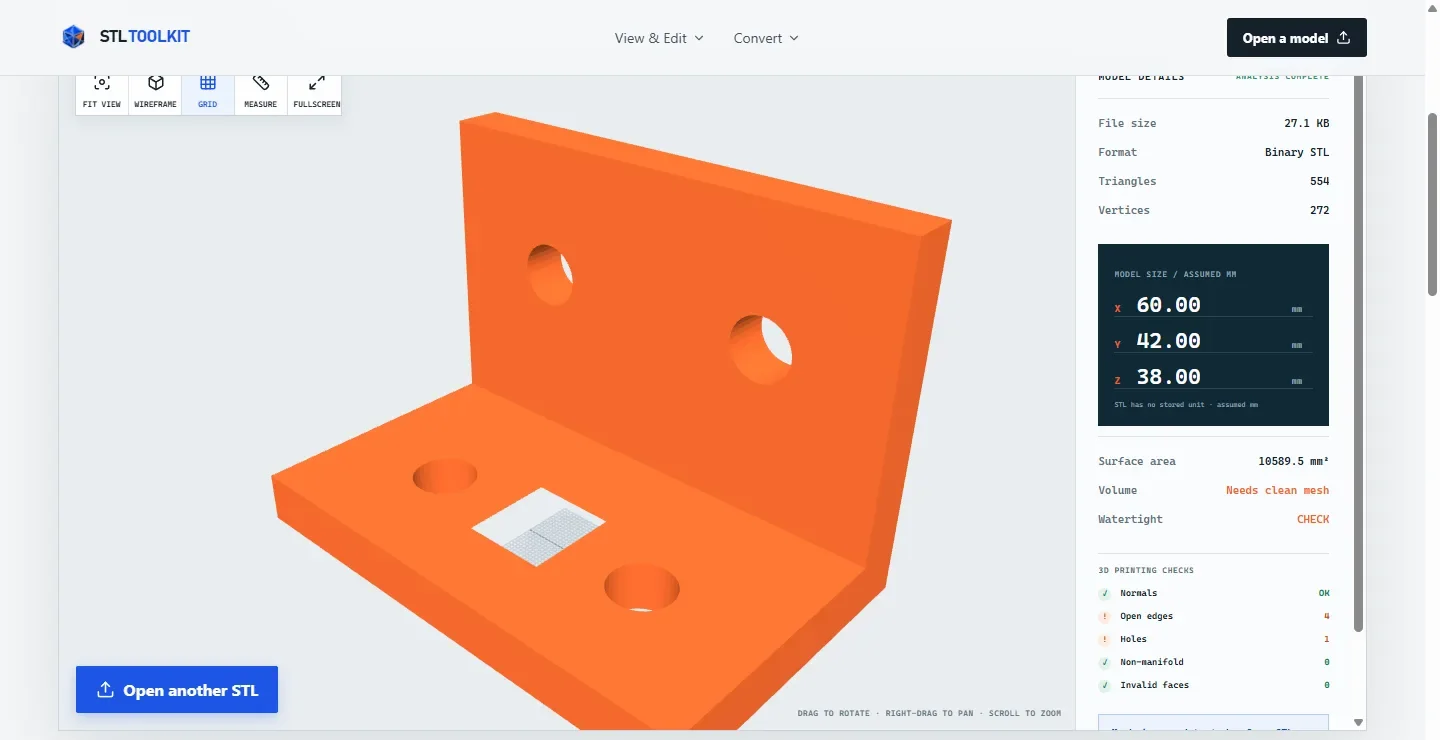
Model detailsCheck dimensions, STL format, triangle count and common mesh problems.Download sample bracket STLPoint-to-point measurementChoose Measure and select two points. Their straight-line distance appears in millimeters (the assumed unit).Mesh issues at a glanceOpen the damaged example to see how the viewer reports gaps and other mesh problems.Download broken mesh STL
07 Before you print
Check STL Files Before 3D Printing
After opening a file, check whether its surface is closed and whether the viewer finds holes, open edges or other mesh problems. If something looks wrong, inspect it before printing.
Watertight: Yes
The mesh has no open boundary edges. This is a good structural starting point, but it does not confirm wall thickness, clearances or printer settings.
Open edges or holes
The surface has a gap. A slicer may produce missing or unpredictable geometry, so open the file in STL Repair before printing.
Non-manifold edges
Some edges may connect too many faces, which can cause trouble when slicing. Check the affected area and make sure any repair keeps the shape you want.
Invalid faces or normals
Some triangles have no usable area or point the wrong way. This can affect the model and its volume result. Review the file and check again after repair.
A clean result means the model passed these basic mesh checks, not that it is guaranteed to print correctly. Wall thickness, overhangs, clearances and printer tolerances are not evaluated. Volume is shown only when the model passes the basic mesh checks.
Use this STL viewer to check a model before editing or 3D printing. It helps you spot common problems, but it cannot find everything that could affect a print.
Feature
What it does
What to know
3D preview
Rotate, pan, zoom and inspect wireframe triangles.
Not a full CAD or sculpting editor.
STL dimensions
Read overall X, Y and Z model size.
STL has no stored units; values assume millimeters.
Two-point measure
Measure the straight-line distance between points on the mesh.
Not an along-the-surface measurement.
Mesh inspection
Check basic watertight status, open edges and non-manifold geometry.
Does not test every self-intersection or print failure.
Model statistics
View triangles, surface area and volume where reliable.
Volume may be unreliable for damaged meshes.
STL formats
Open both binary and ASCII STL files.
Other 3D formats need their own viewer or converter.
Even if your model passes these checks, it may not be ready to print. Wall thickness, overhangs, clearances and printer settings require further checks in your slicer.
09 STL file formats
Binary vs ASCII STL Files
Both binary STL and ASCII STL represent a surface made from triangles. Binary STL typically uses less disk space, while ASCII STL stores triangle information as readable text. This viewer recognizes both formats and reports which one you opened.
Neither STL format stores the intended measurement unit, object color or print settings in a portable way. The coordinates are interpreted as millimeters here. If the model looks too small or large in your slicer, check the original unit before changing its scale in the STL Editor.
10 What to do next
Edit, Repair and Convert STL Files
After viewing your model, you can resize it, fix common mesh problems or convert it. When you switch tools, choose your STL file again.
An STL viewer lets you open and explore a 3D model saved as an STL file. Rotate it, check its dimensions and look for common mesh problems without installing 3D software.
How do I open an STL file without installing software?+
Choose an STL file or drop it into the viewer above. It opens directly in your browser, so there is no app, account or installer required.
Can I measure STL file dimensions online?+
Yes. The viewer reports overall X, Y and Z dimensions, and the Measure tool lets you click two points on the model to check the distance between them.
Can I view both binary and ASCII STL files?+
Yes. STL Toolkit opens both binary and ASCII STL files and shows which format you are viewing.
Why are my STL dimensions incorrect?+
STL files do not specify units. This viewer displays their coordinates as millimeters. If your model was created in inches or another unit, check its original scale before measuring.
How can I check if an STL file is watertight?+
A watertight STL has no open gaps in its surface. Open your file and check the Watertight result, plus the counts for holes, open edges and other mesh problems.
Can I repair a broken STL file?+
If the viewer finds a mesh problem, open STL Repair and choose the file again. Your model stays on your device and is not automatically passed between tools.